
Apple’s latest MacBooks offer incredible power, but a frustrating limitation plagues many models: external display support. While high-end MacBook Pros effortlessly handle multiple monitors, base-model M1, M2, and even some M3 MacBooks struggle, often restricted to a single external screen—a significant step back from previous Intel-based Macs.
The M3 MacBook Air adds a wrinkle: it *can* support two external displays, but only when its lid is closed, a setup known as Clamshell Mode. This workaround feels less like a solution and more like a compromise. For users accustomed to expansive desktop setups, these restrictions are a major headache.
But there’s hope. A clever solution exists, allowing even base-model M1, M2, and M3 Macs to drive more than two external displays, and even newer M4 and M5 models to expand beyond their native limits. This relies on a technology called DisplayLink, and it’s a game-changer for productivity.
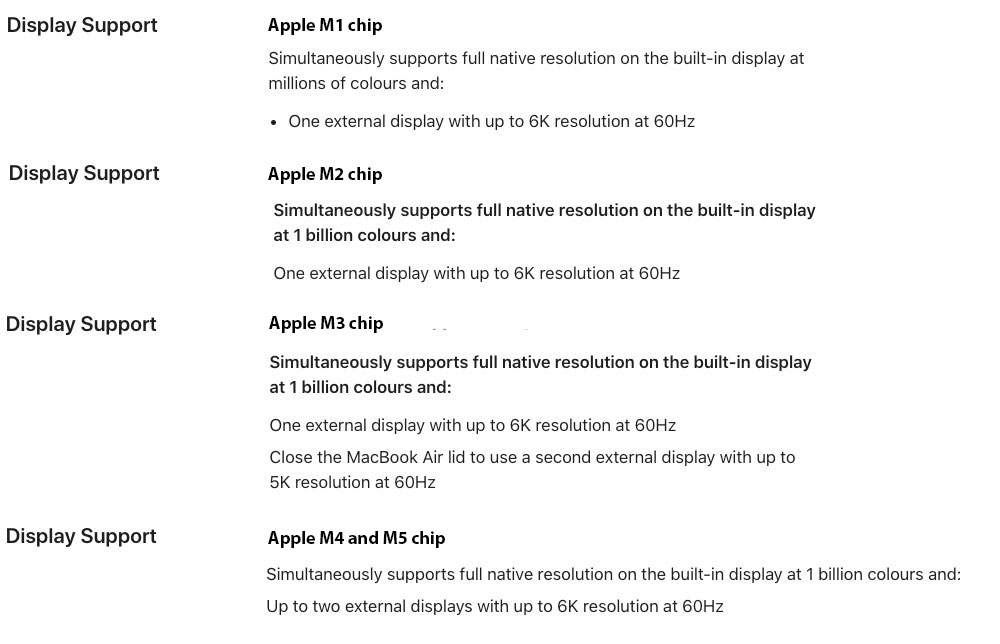
The core issue stems from how Apple’s chips handle graphics. The standard M1 and M2 processors simply aren’t designed to natively support multiple external displays. DisplayLink bypasses this limitation by using software to compress video signals, effectively tricking the system into recognizing more screens. It’s a software-based workaround, but a remarkably effective one.
However, it’s not without caveats. DisplayLink requires installing third-party drivers, which introduces a small risk of incompatibility with future macOS updates. Fortunately, the drivers we recommend are industry standards with a proven track record of continued support, minimizing this concern.
Here’s a breakdown of what each MacBook model can handle, and how these workarounds can help:
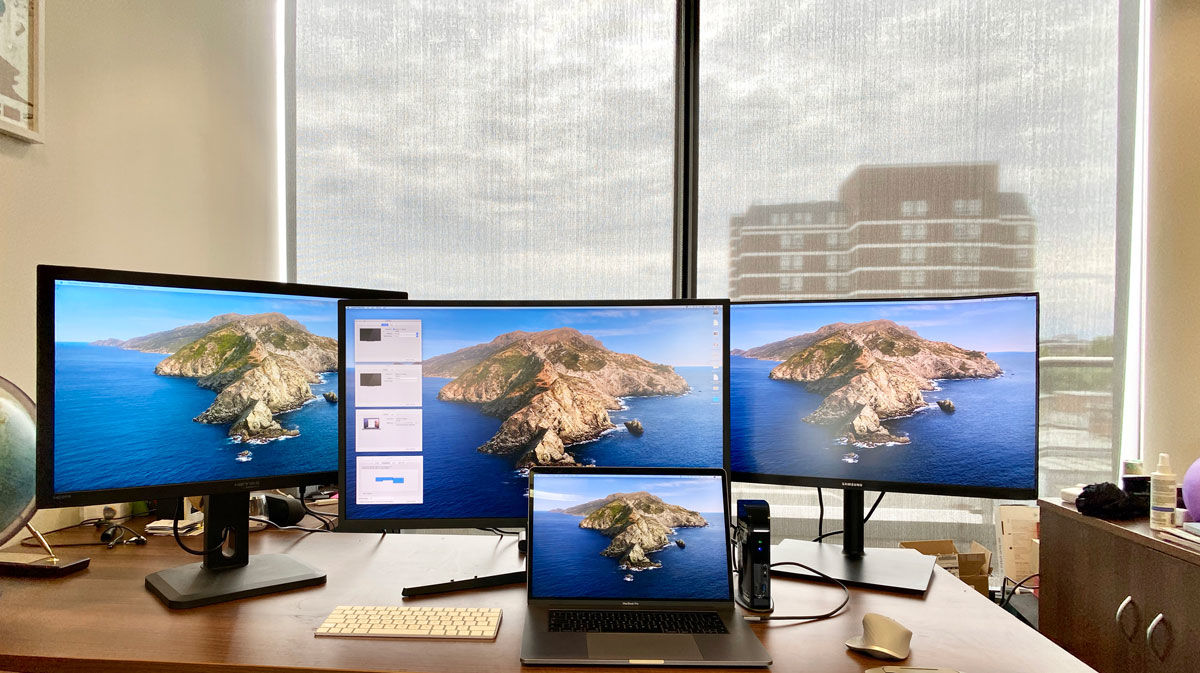
M1/M2 MacBook Air & M2 MacBook Pro:Maximum one external display natively. With DisplayLink, unlock up to five.
M3 MacBook Air & M3 MacBook Pro:Maximum two displays (lid closed). DisplayLink can push this to four or more.
M2/M3 Pro MacBook Pro:Maximum two displays. Expand to four or more with DisplayLink.
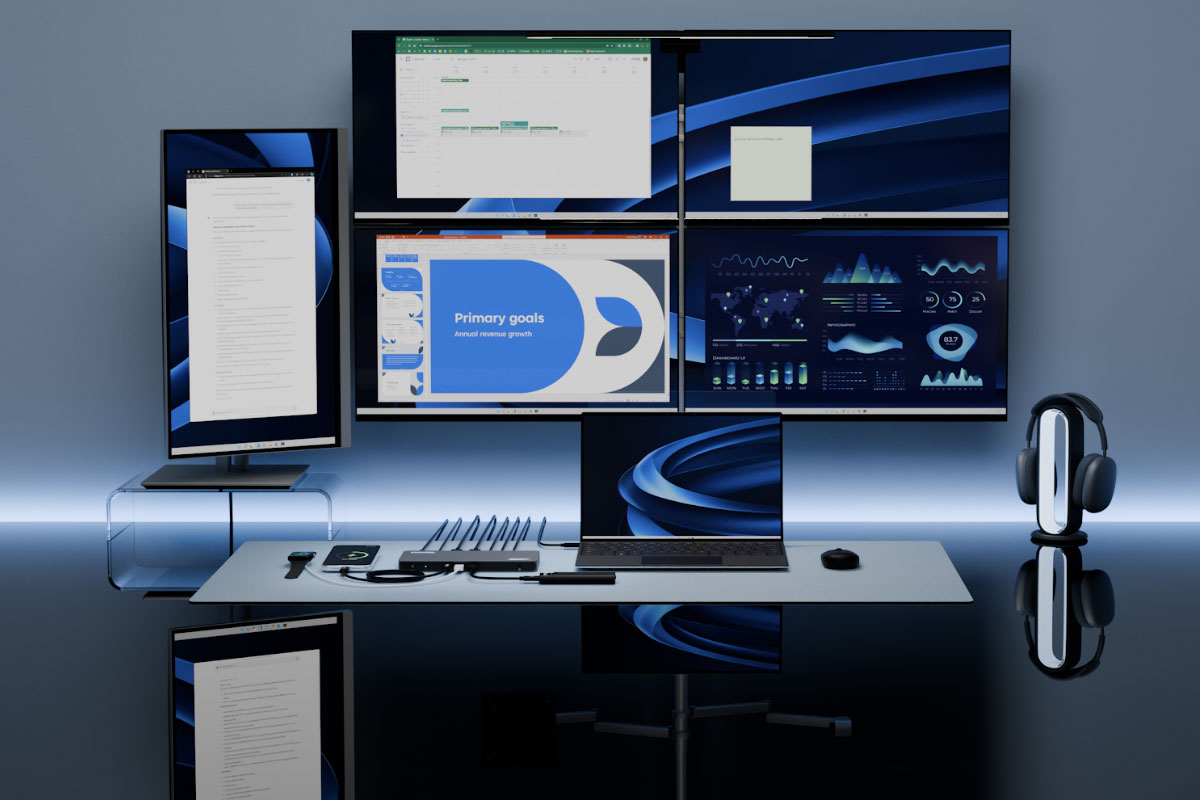
M4 MacBook Air, M4/M5 MacBook Pro & M4 Pro MacBook Pro:Maximum two displays. DisplayLink unlocks three or even five.
M2/M3/M4 Max MacBook Pro:Maximum four displays. Push it to five with DisplayLink on compatible docks.
The key to unlocking this potential lies in a DisplayLink-enabled dock or adapter. These devices take the video signal from your MacBook and convert it into a format the system *can* handle, effectively adding more display outputs.
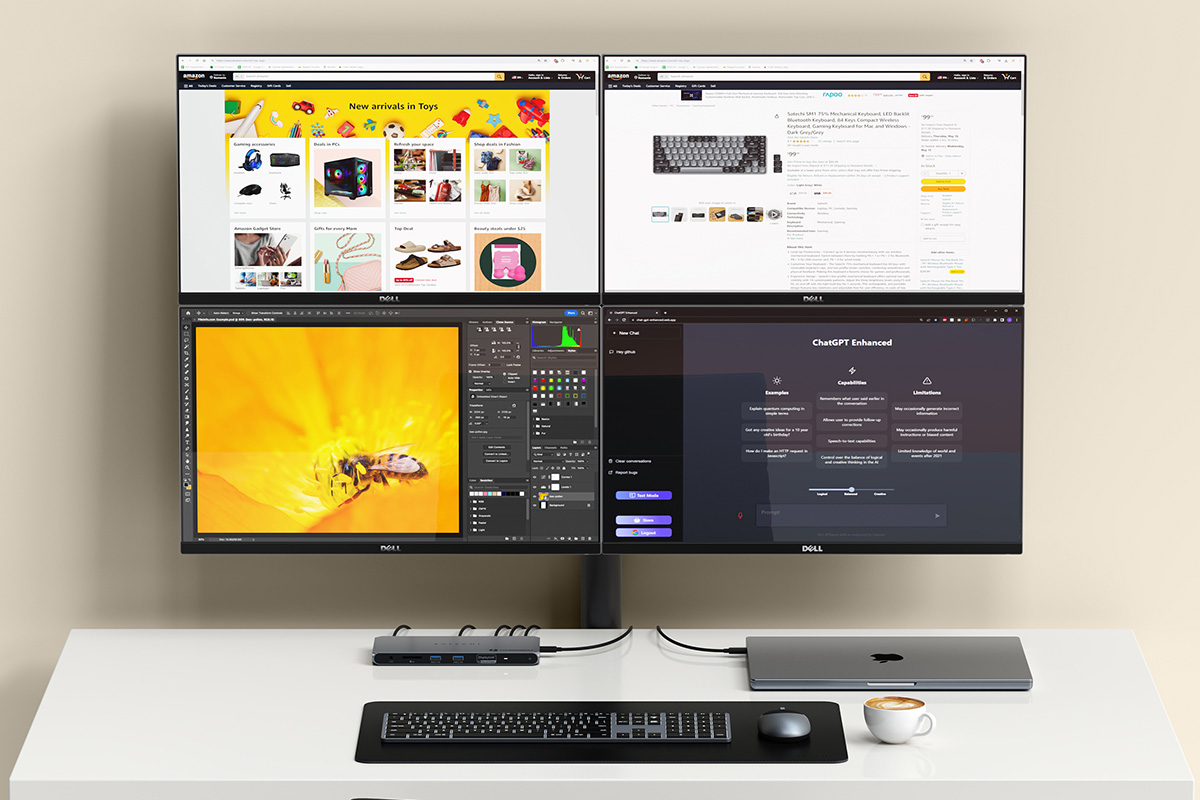
Installing the DisplayLink software is straightforward. Some docks even offer the software automatically upon connection. You’ll need to grant “Screen Recording” permission in your Mac’s Security & Privacy settings – don’t worry, DisplayLink isn’t actually recording your screen, it needs this access to manage the video output.
While DisplayLink is the most common solution, another option exists: SiliconMotion’s InstantView. The setup is similar, but it’s crucial to remember that these technologies require compatible hardware. You can’t simply install the software and expect it to work with any old dock.
There’s one potential snag to be aware of: some streaming services like Netflix and Amazon Prime Video may block playback when using DisplayLink due to HDCP (High-bandwidth Digital Content Protection). This is a DRM measure designed to prevent content copying, and it can interfere with DisplayLink’s operation. Workarounds include switching browsers or disabling hardware acceleration, but it’s a consideration.
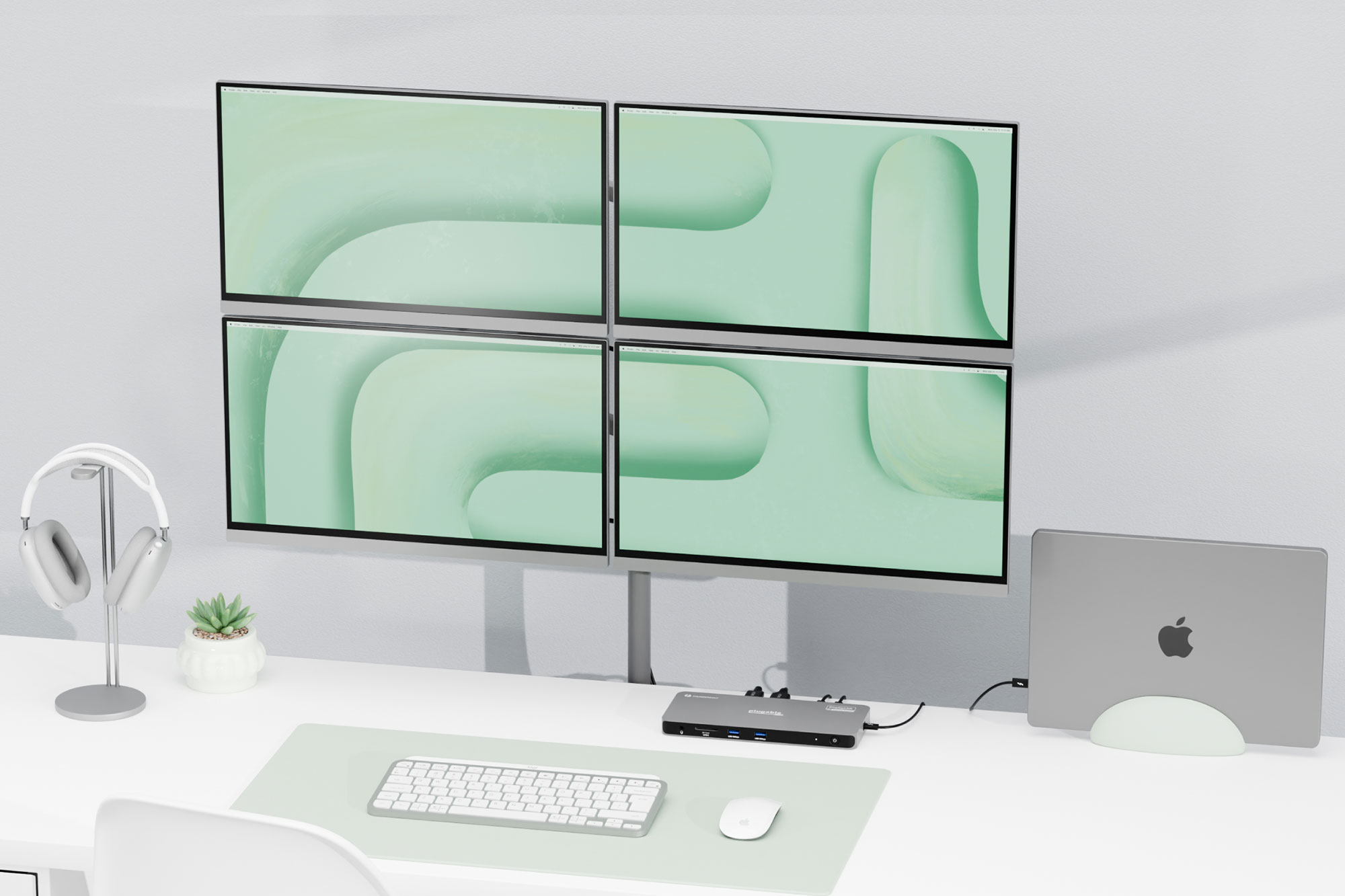
Ultimately, DisplayLink and InstantView offer a powerful solution for Mac users seeking to expand their display capabilities. While not a perfect fix, they provide a viable workaround for Apple’s limitations, unlocking a more productive and immersive desktop experience.
Below are some of the best DisplayLink docks and adapters currently available, tested and recommended for maximizing your Mac’s display potential.
Plugable 5 Display USB-C Dock (UD-7400PD):The ultimate multi-monitor solution, supporting up to five 4K displays at 60Hz. Ideal for power users who demand maximum screen real estate.
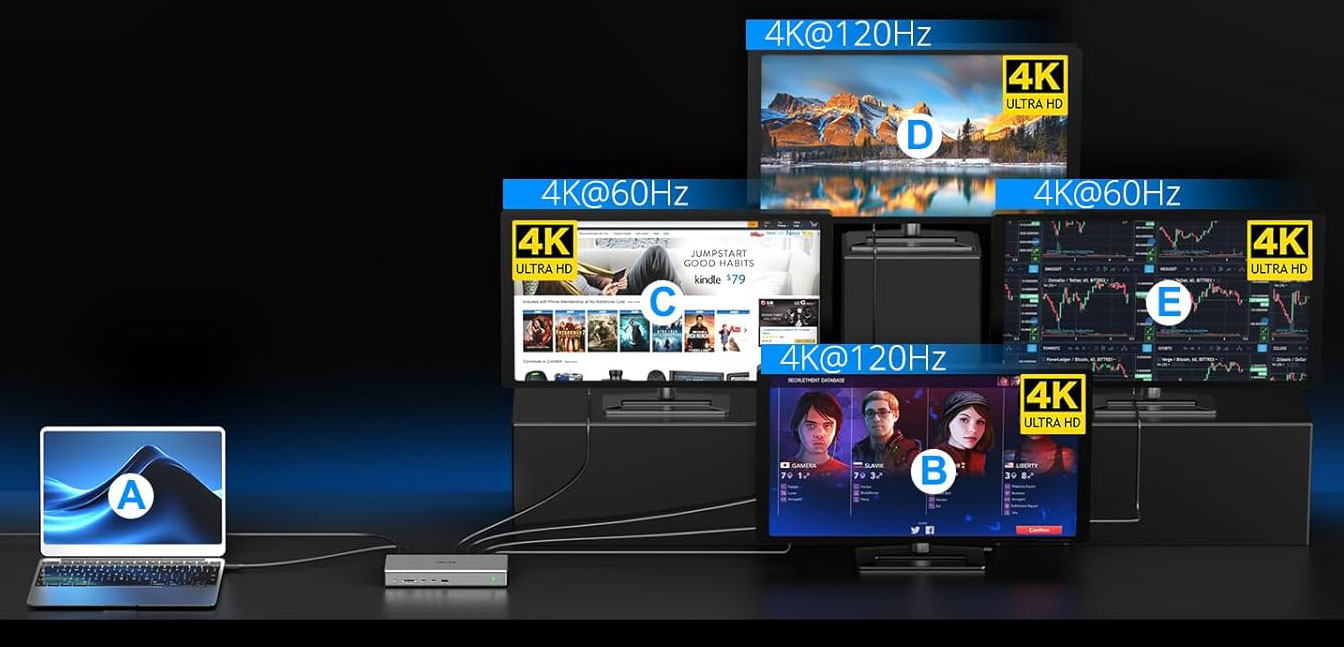
Satechi Thunderbolt 4 Docking Station with DisplayLink:A premium option offering Thunderbolt 4 speeds and support for up to four 4K displays. A great choice for those who need both performance and connectivity.
Plugable Thunderbolt 4 Docking Station (TBT-6950PD):Similar to the Satechi dock, offering Thunderbolt 4 speeds and four display support. A solid alternative with a slightly different feature set.
WAVLINK USB-C DisplayLink (DL7400) Docking Station:Supports up to four 4K displays at 60Hz, and boasts a 2.5Gb Ethernet port for faster network speeds.
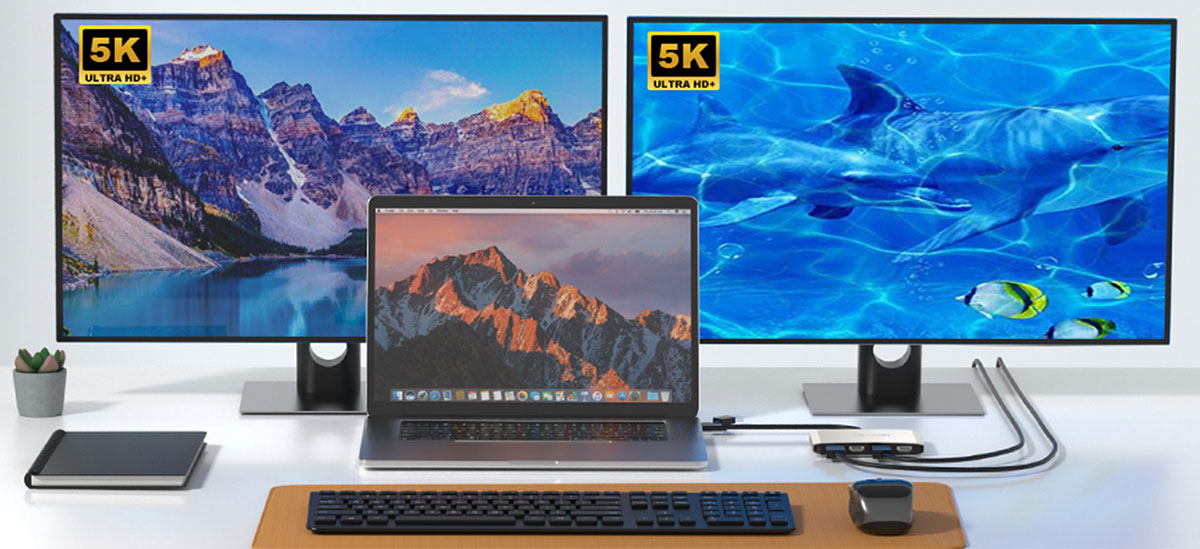
Wavlink Dual 4K HDMI Adapter:A compact and affordable adapter supporting two 5K displays at 60Hz, perfect for a minimalist setup.
Plugable USB-C Dual 4K Display Docking Station (UD-6950PDH):A versatile dock supporting two 4K displays, along with a range of other ports.
Hyperdrive Dual 4K HDMI 10-in-1 USB-C Hub:A feature-rich hub supporting two 4K displays (one at 60Hz, one at 30Hz) and a host of other ports.
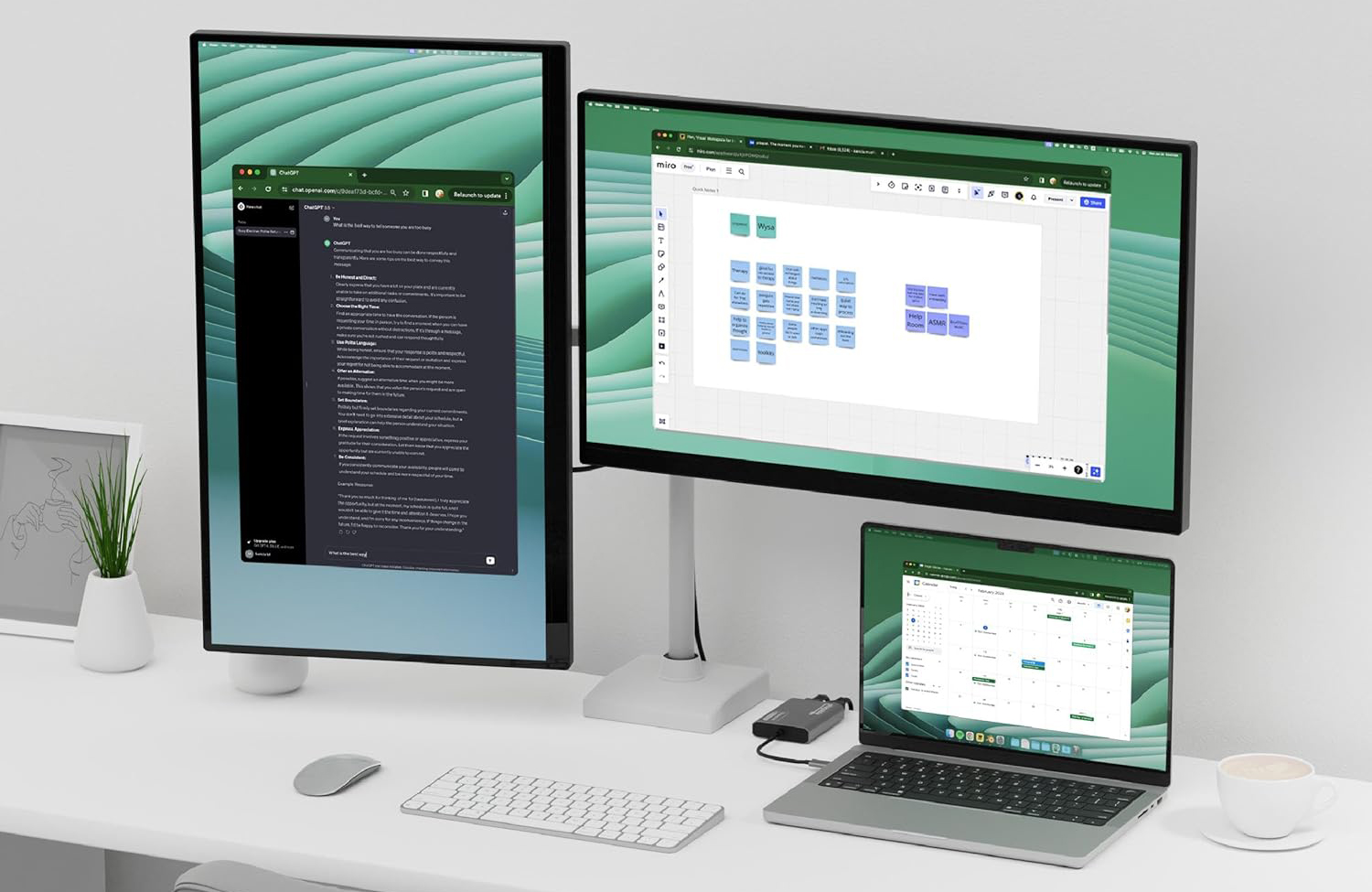
Alogic DX3 Triple 4K Display Universal Docking Station:Supports three 4K displays, offering a balance of performance and connectivity.
Choosing the right dock depends on your specific needs and budget. Consider the number of displays you want to support, the types of ports you require, and your desired level of performance.


