The sinking feeling. You plug in your USB drive, the one holding irreplaceable photos, vital documents, or a project you’ve poured weeks into… and nothing. Silence. Or worse, an error message. A corrupted USB drive can feel like a digital disaster, but don’t despair. Your files might not be lost forever.
Recognizing the signs of corruption is the first step. Perhaps you can plug it in, but files refuse to open, displaying cryptic errors. Maybe files have simply vanished, despite your certainty you didn’t delete them. It could be complete unresponsiveness – your computer doesn’t even acknowledge the drive’s presence. Or the dreaded request to format the drive before use, a warning that data access is severely compromised.
If you’re facing these issues, immediate action is crucial. Don’t simply give up. There are methods to coax your data back from the brink. The most powerful approach often involves specialized data recovery software, tools designed to bypass the usual operating system limitations and directly access the drive’s underlying data.
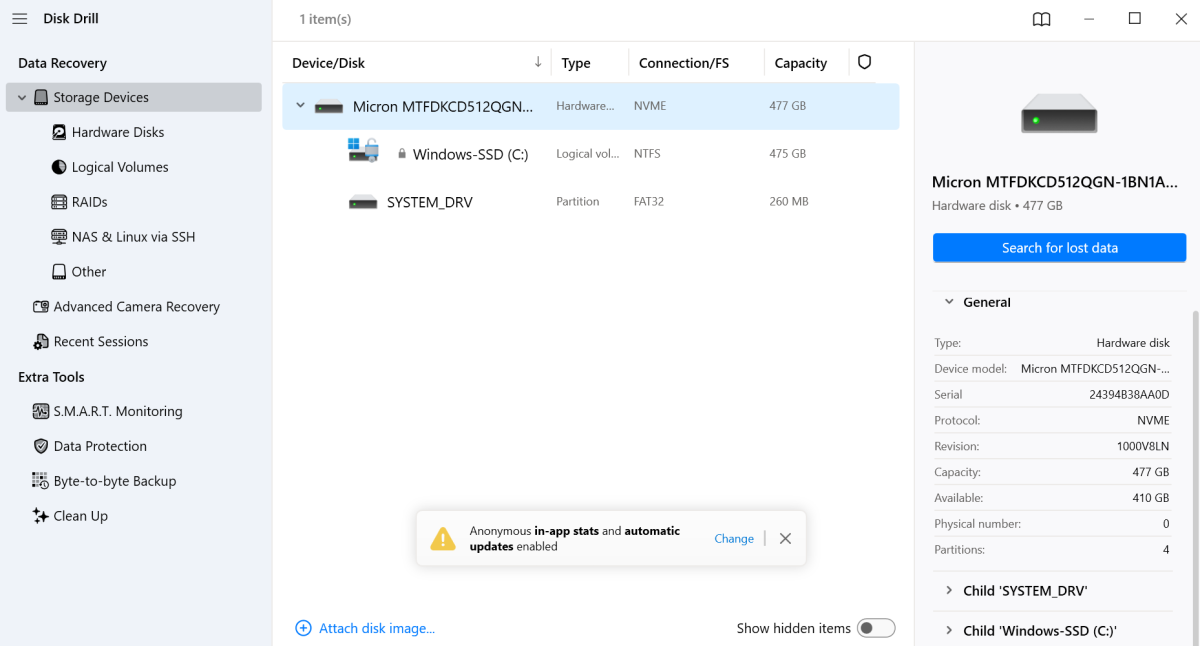
One such program utilizes advanced recovery algorithms to scan the damaged drive. Begin by downloading and installing the software. Once installed, connect your USB drive; it should appear in the program’s disk list. Before attempting recovery, create a byte-to-byte backup of the drive. This creates an exact copy, safeguarding against further data loss during the recovery process. The software guides you through this process, allowing you to choose a safe location for the backup file.
With the backup secured, open the data recovery panel within the software. Attach the backup file you just created as a disk image. Initiate a scan, selecting a recovery method. The software will meticulously search for lost data, and once complete, present you with a list of recoverable files. Carefully browse the results, select the files you need, and choose a *different* drive to save them to – never the corrupted USB drive itself, to avoid overwriting potentially recoverable data.
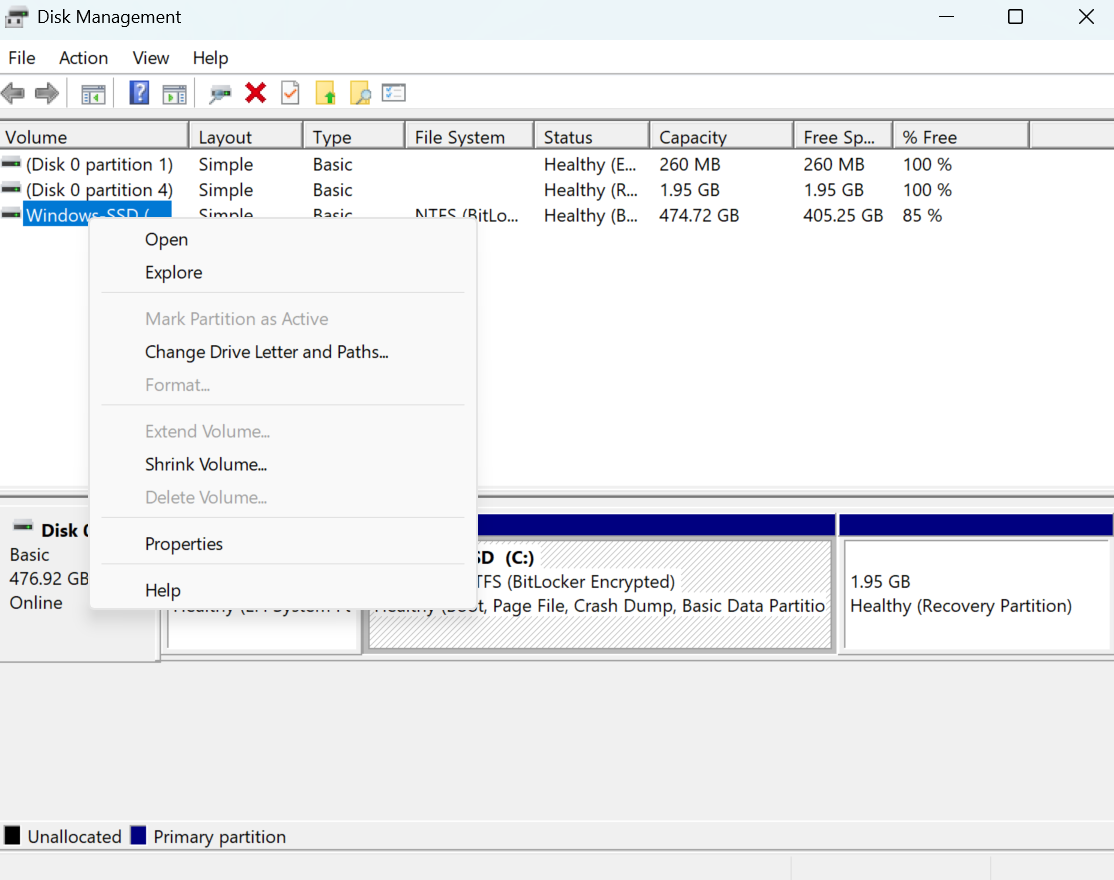
Sometimes, the issue isn’t data corruption, but a simple miscommunication between your computer and the drive. Windows might not be recognizing the assigned drive letter. To fix this, access Disk Management by right-clicking the Start icon. Locate your USB drive, right-click its drive letter, and select “Change drive letter and paths.” Assign a new, unused drive letter, and see if that restores access.
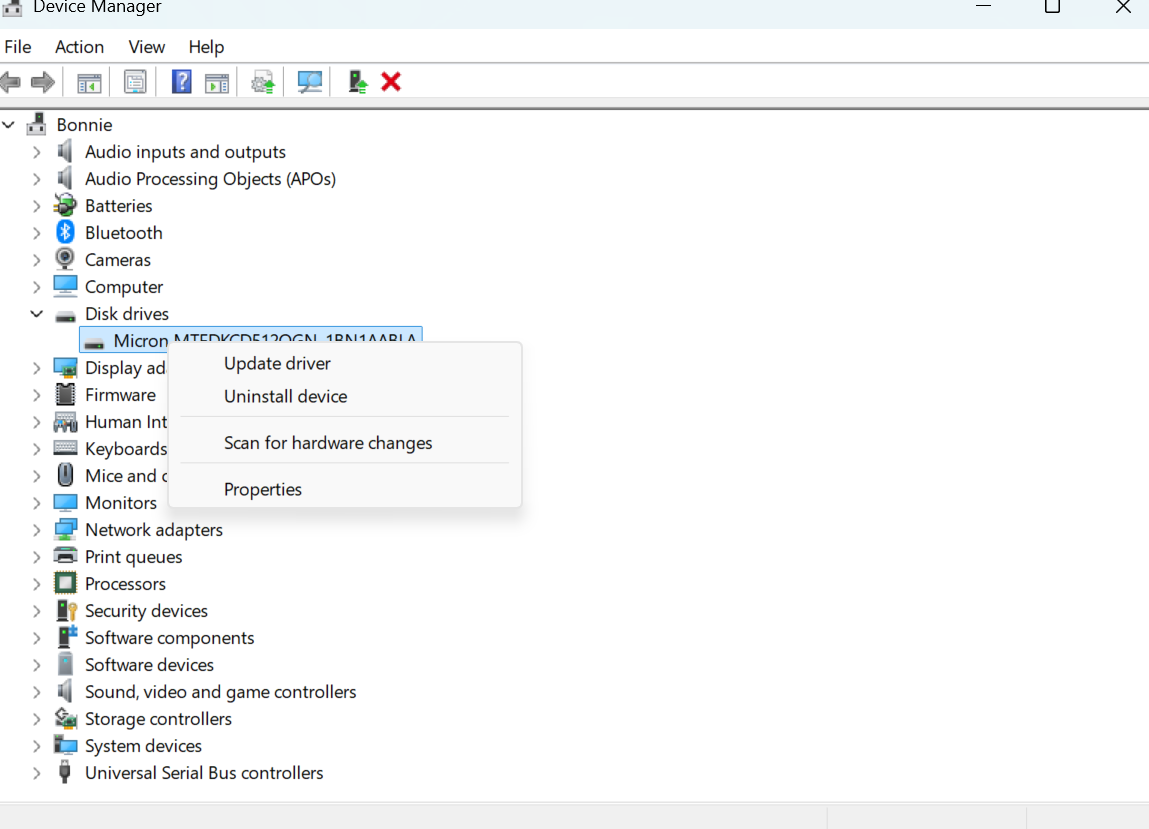
Finally, consider the possibility of driver issues. USB drivers act as the essential link between your operating system and the drive. If these drivers are faulty or corrupted, the connection can fail. Open Device Manager, expand the “Disk drives” section, right-click on your USB drive, and select “Uninstall device.” Then, unplug and replug the drive. This forces Windows to automatically reinstall the latest drivers, potentially re-establishing the connection.
Hopefully, one of these methods will breathe life back into your USB drive and rescue your valuable files. Start with the data recovery software – it’s often the most effective solution. But remember, prevention is always better than cure. Always safely eject your USB drive through the system tray icon, *never* while data is being transferred. And, crucially, implement a robust backup strategy for all your important data. A reliable backup is your ultimate safeguard against data loss.