The browser is the central hub for so much of modern work, a gateway to the tools and information that drive productivity. For many, including myself, it’s not just an application – it’s the workspace itself. Right now, as I craft these words, a browser connects me to the very system delivering this article, while simultaneously juggling research, references, and countless sources.
For a couple of years, Google Chrome has been my browser of choice. The shift came from frustration with Safari’s persistent memory issues, a problem that seemed perpetually unresolved. But recently, Google introduced a feature so compelling, so seamlessly integrated into my workflow, that returning to Safari feels unthinkable.
It’s called Split View, and the concept is beautifully simple: the ability to view two distinct websites within a single browser tab. This isn’t just a minor convenience; it’s a fundamental shift in how I manage information and complete tasks. Imagine the efficiency of having a research source open side-by-side with the document you’re writing, eliminating constant tab-switching.
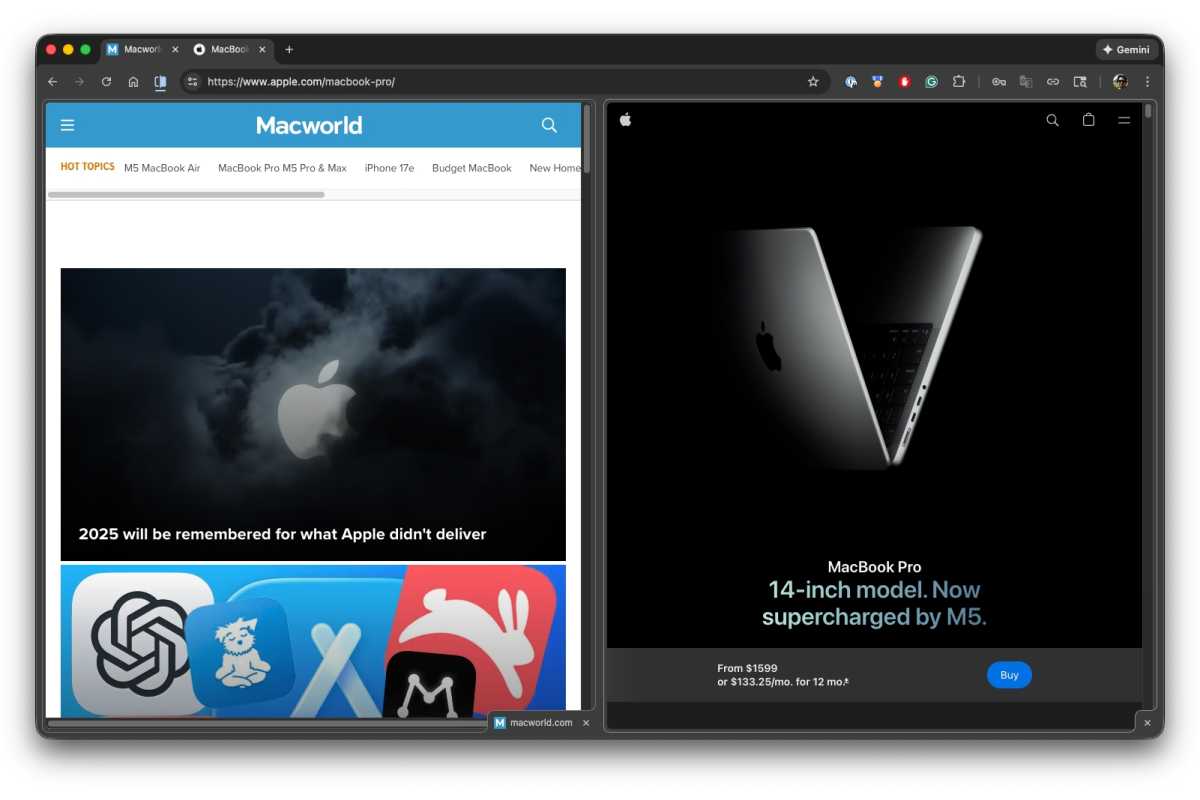
Previously, I relied on a chaotic dance of multiple tabs or carefully arranged browser windows. Each method demanded constant attention, a mental overhead that chipped away at focus. Split View eliminates that friction, allowing me to concentrate on the content, not the management of my digital workspace.
Activating Split View is intuitive. Simply move your cursor to the desired website within the tab, and it instantly becomes active. Closing a side is equally straightforward – a simple click on the “x” within that pane. Even keyboard shortcuts are thoughtfully implemented; Command+W closes the currently active side, leaving the other untouched.
To experience Split View, ensure you’re running the latest version of Chrome. Within the browser, navigate to Chrome > Settings > About Chrome to initiate an update if necessary. Once updated, accessing Split View is remarkably easy, offering multiple pathways depending on your current browsing setup.
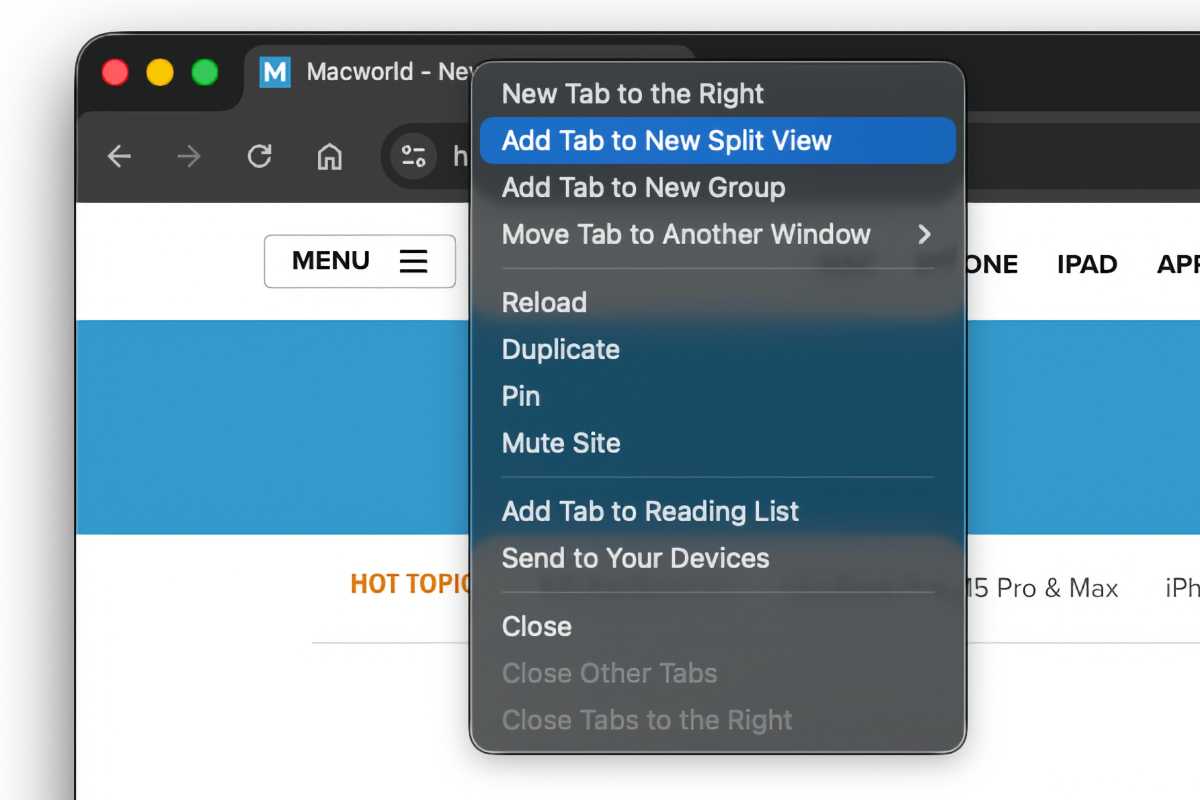
If you have a single tab open, Control-click on it and select “Add Tab to New Split View.” A new pane will appear, prompting you to enter a URL or select a bookmark for the second website. It’s a direct, streamlined process.
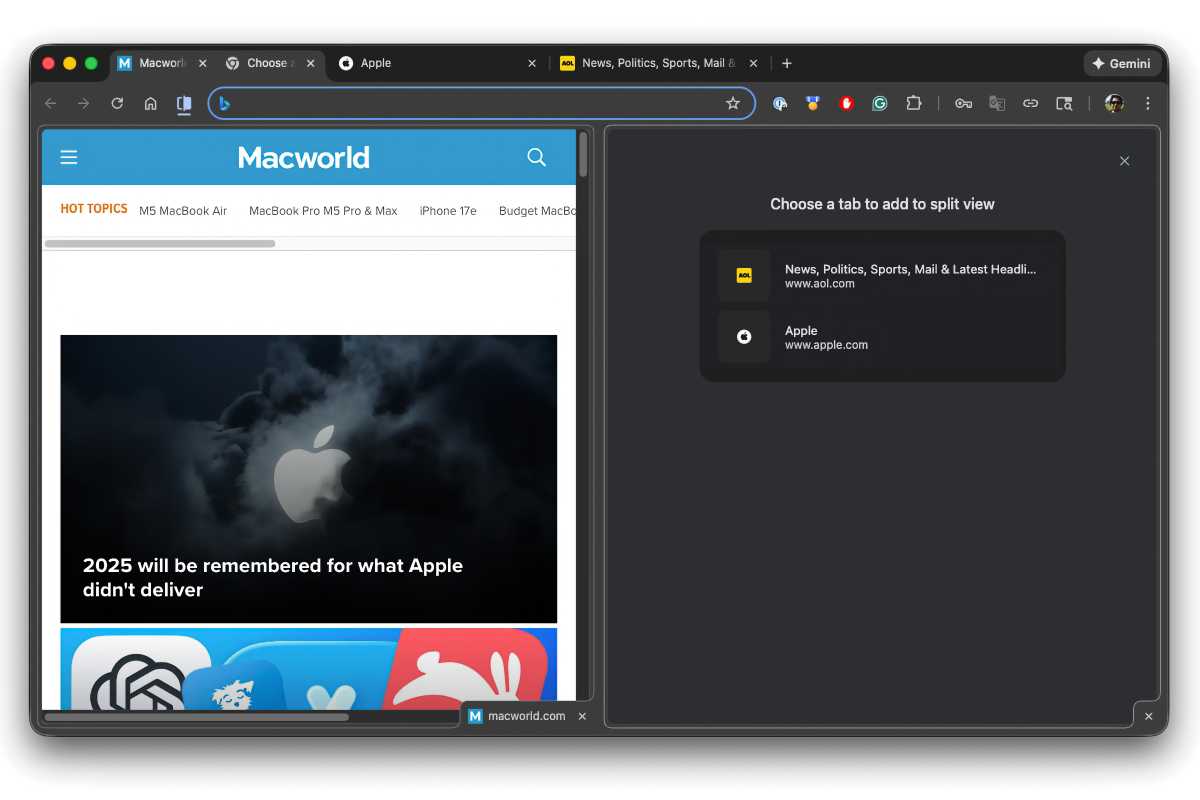
With multiple tabs already open, Control-clicking the tab of the *active* website presents a list of your other open tabs. Select the one you want to join in Split View, and it will instantly load in the adjacent pane. This is perfect for quickly pairing related resources.
Finally, if you Control-click on an *inactive* tab, you’ll find the option “New Split View with Current Tab.” Choosing this combines the currently active tab with the one you clicked on, creating a split view from any point in your browsing session. It’s a versatile feature, adaptable to any workflow.