For decades, a hidden command has offered a remarkably swift and clean way to shut down Windows –shutdown.exe. It’s a tool that bypasses the usual system hesitations, the lingering processes, and the frustrating delays that often accompany a simple shutdown request.
Imagine needing to power down your PC quickly, schedule a restart for later, or even automatically put your laptop to sleep after a movie. This isn’t about complex configurations; it’s about taking direct control with a few, easily remembered commands. This guide unlocks that power, revealing how to reliably manage Windows 10 and 11 shutdowns with precision.
The core command,shutdown.exe, has been a reliable component of Windows since the days of XP. Unlike clicking the “Shut down” button, it offers granular control. You can dictate *when* your PC shuts down, whether it restarts, enters hibernation, or simply logs off a user – a boon for scripting, scheduled tasks, or moments when time is of the essence.
To shut down immediately, without any delay, use:shutdown /s /t 0. This command cuts straight to the point, bypassing any prompts or waiting periods. Need to give others a warning? Tryshutdown /s /t 60 /c "Shutdown in 60 seconds - save work!". This displays a message with a countdown, providing a crucial window for saving progress.
And if you change your mind? Don't panic. Theshutdown /acommand (for abort) instantly cancels any pending shutdown process. It’s a safety net, offering peace of mind when you’ve initiated a shutdown prematurely.
Beyond a simple shutdown, you can restart instantly withshutdown /r /t 0– ideal after updates. Or, leverage hybrid shutdown for faster boot times withshutdown /s /hybrid /t 0. This saves system states, allowing for a quicker startup, though it’s best avoided on dual-boot systems where it can sometimes cause conflicts.
For laptops, hibernation offers a powerful energy-saving mode. Theshutdown /hcommand saves your current session to the hard drive, allowing you to resume exactly where you left off upon startup. It’s like pausing your work, preserving everything for a seamless continuation.
Want a one-click solution? Create a desktop shortcut. Right-click on your desktop, select “New → Shortcut,” and entershutdown /s /t 0as the target. Name it something descriptive, like “Switch off PC,” and even assign a custom icon or keyboard shortcut for instant access.
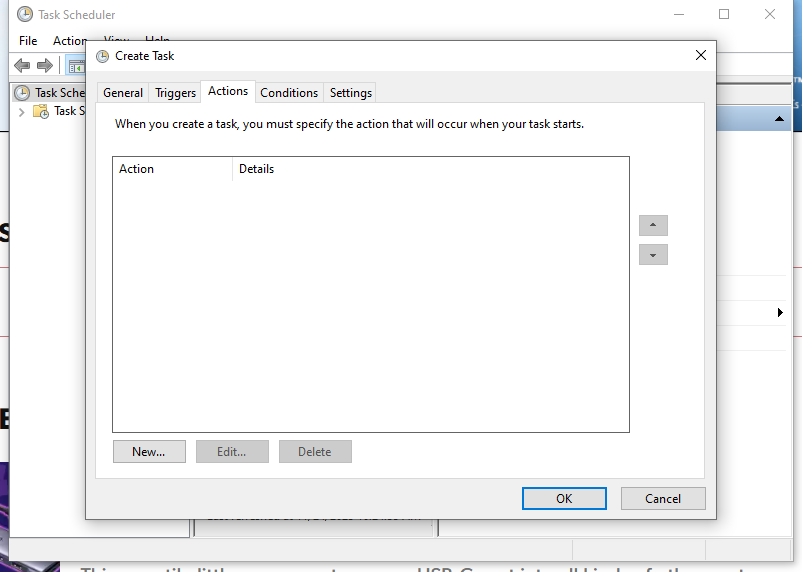
Automate shutdowns with a timer. For example,shutdown /s /t 3600 /c "PC will switch off in 60 minutes"will initiate a shutdown in one hour, providing a clear warning message. You can even schedule these shutdowns using the Task Scheduler for truly hands-free operation.
PowerShell provides an alternative, offering cmdlets likeStop-computerfor local shutdowns andStop-Computer -ComputerName PC123 -Forcefor remote shutdowns (requiring proper remoting configuration). PowerShell’s syntax is often cleaner and more readable, especially for complex scenarios.
Remote shutdowns are also possible using the classic command prompt:shutdown /m \\RECHNERNAME /s /t 0. However, this requires specific network permissions and configurations, making PowerShell remoting a generally simpler and more secure option.
Occasionally, you might encounter issues. If Windows displays “Apps are preventing shutdown,” allow processes to finish naturally. Avoid the /f parameter unless absolutely necessary, as it forces app closures and risks data loss. Similarly, address update blocks by completing the update or using a direct restart command.
For quick reference, here are a few essential commands: automatically shut down after two hours withshutdown /s /t 7200 /c “Automatic shutdown in 2 hours”, safely restart after updates withshutdown /r /t 0, and cancel a countdown withshutdown /a.
Ultimately, mastering these commands unlocks a level of control over your Windows system that goes beyond the standard interface. Whether you’re a tech enthusiast, a system administrator, or simply someone who values efficiency,shutdown.exeand its PowerShell counterparts offer a powerful and reliable way to manage your PC’s power state.