
When macOS Tahoe arrived, I, like countless others, eagerly downloaded it onto my powerful M3 Max MacBook Pro. With 36GB of RAM and a terabyte of storage, I anticipated a seamless experience. Instead, a frustrating problem emerged.
Almost immediately, intermittent freezes began disrupting my workflow – brief pauses that halted whatever I was doing. These weren’t tied to a specific application, making them unpredictable and incredibly annoying. Some days brought frequent interruptions, while others were relatively clear.
I cycled through the standard troubleshooting steps: closing applications, restarting, even a full shutdown. The first update, macOS 26.0.1, offered no relief. I’d hoped it was a simple initial release bug, expecting a fix in the next version, 26.1. But the freezes persisted even after that update.
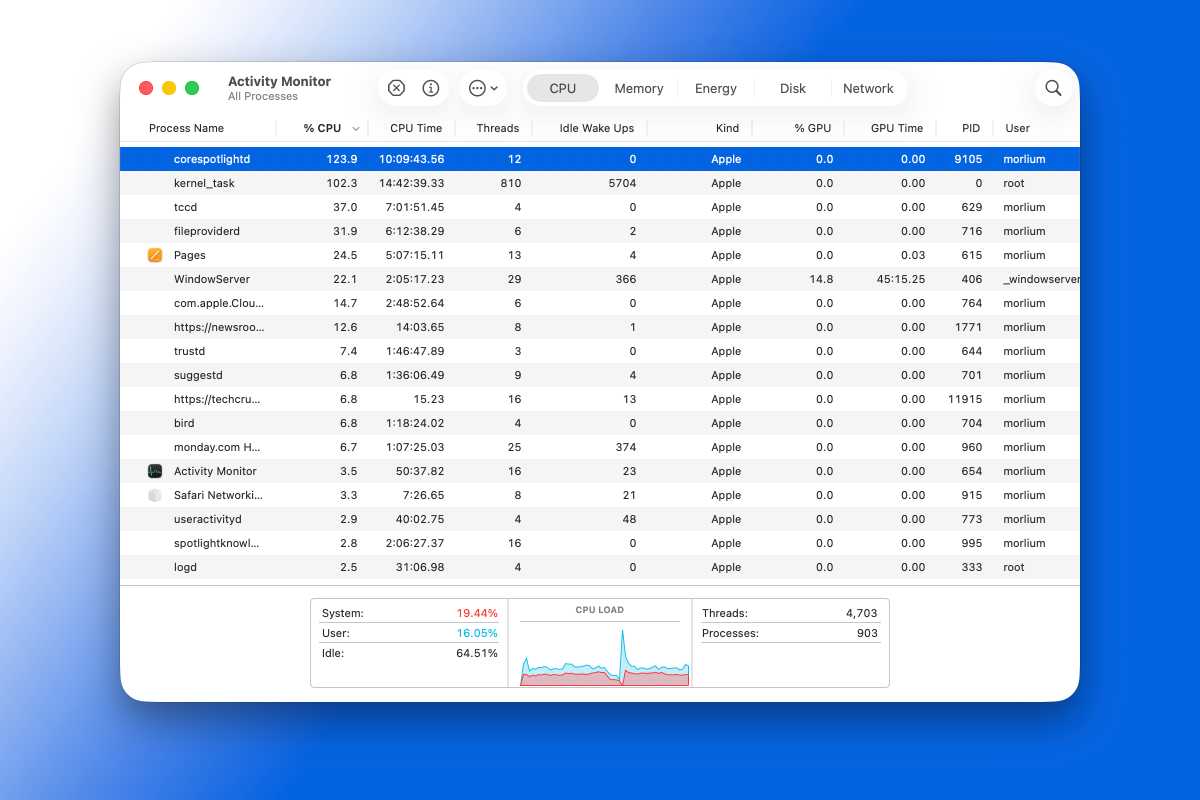
Having previously battled memory issues on an older M1 MacBook Pro, I turned to Activity Monitor. Surprisingly, memory pressure remained consistently within safe limits. A single, complete system freeze pointed to an application memory issue, but a specific culprit remained elusive. Resources weren’t the problem; yet, the random freezes continued, sometimes occurring dozens of times an hour.
Frustrated, I delved deeper, focusing on the CPU usage. While the overall CPU load appeared normal, two processes – corespotlightd and kernel_task – consistently consumed over 100 percent of the CPU. Considering my MacBook’s core count, this translated to a significant drain on system resources.
The corespotlightd process, in particular, was a major offender, frequently exceeding 100 percent and occasionally nearing 200 percent CPU usage. This seemed excessive for a background task, so I investigated the Spotlight settings within System Settings.
Spotlight itself appeared to function normally, responding quickly to searches. However, two toggles at the top of the Spotlight settings caught my eye: “Show Related Content” and “Help Apple Improve Search.” The latter allows Apple to collect data from Safari, Siri, Spotlight, Lookup, and image searches.
On a hunch, I disabled both toggles. The effect was almost instantaneous. The CPU load plummeted, corespotlightd vanished from the list of resource-intensive processes, and the disruptive freezes ceased. After an hour of monitoring, the problem hadn’t returned.
To confirm, I re-enabled the toggles. A week later, the issue remains absent. While my experience might be unique, if you’re experiencing similar freezes, toggling those two Spotlight settings could restore your MacBook’s smooth performance.


