When macOS Tahoe arrived, the update felt routine. Millions downloaded it, and I, with a fully-equipped M3 Max MacBook Pro, expected no trouble. My machine boasts 36GB of RAM and a spacious 1TB drive – more than enough to handle the new operating system.
Almost immediately, however, a frustrating problem emerged. Intermittent freezes, lasting just a second or two, began disrupting my workflow. These weren’t tied to a specific application, making them unpredictable and incredibly annoying. Some days brought a constant stream of these pauses, while others were mercifully clear.
I ran through the standard troubleshooting steps: closing applications, restarting, even a full shutdown. Each update – first to 26.0.1, then to 26.1 – offered a glimmer of hope, but the freezes stubbornly persisted. It felt like a fundamental issue lurking beneath the surface.
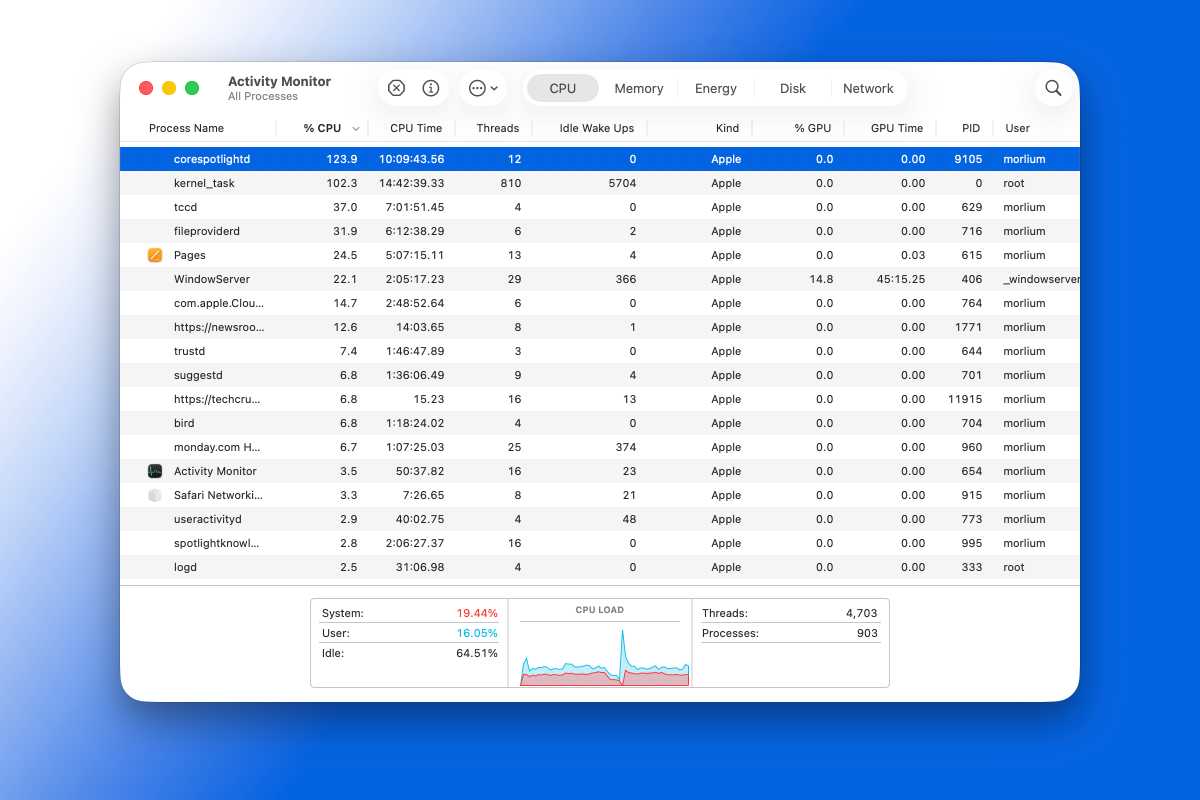
Past experience with an M1 MacBook Pro led me to suspect memory issues. I diligently monitored Activity Monitor, but memory pressure consistently remained well within safe limits. A single, complete system freeze pointed to an application memory problem, but identifying the culprit proved impossible. Resources weren’t the issue; the machine simply froze, sometimes dozens of times an hour.
Driven to find answers, I delved deeper into Activity Monitor. While the overall CPU load appeared normal, two processes – corespotlightd and kernel_task – consistently hogged over 100 percent of the CPU. Considering my MacBook’s core count, a total CPU usage of 1,400 percent was technically possible, but this felt excessive for background tasks.
The corespotlightd process, in particular, was a significant drain on system resources, frequently exceeding 100 percent and occasionally nearing 200 percent. This led me to the Spotlight settings within System Settings, hoping to uncover a clue.
Spotlight itself seemed to function normally, responding quickly to searches. However, two toggles at the top of the Spotlight settings caught my eye: “Show Related Content” and “Help Apple Improve Search.” The latter allows Apple to collect data from Safari, Siri, Spotlight, Lookup, and image searches.
On a hunch, I disabled both toggles. The effect was almost instantaneous. The CPU load plummeted, corespotlightd vanished from the list of resource-intensive processes, and the frustrating freezes ceased. After an hour of monitoring, the problem hadn’t returned.
Curious to confirm the fix, I re-enabled the toggles. A week later, the issue remains absent. While my experience might be unique, if you’re experiencing similar freezes, toggling those two Spotlight settings is worth a try.
If that doesn’t resolve the problem, consider disabling the toggles for individual apps, particularly Pages, as some users have reported issues with that application specifically. A simple adjustment might be all it takes to restore your MacBook’s smooth performance.