Imagine needing to quickly process files within a specific folder on your Windows 11 computer. Perhaps you want to initiate a complex copy operation or run a specialized command. The usual method – navigating through menus and clicking repeatedly – can feel slow and cumbersome.
Fortunately, Windows 11 offers a remarkably efficient solution. You can launch either PowerShell or the Command Prompt directly within the folder you’re already viewing, eliminating unnecessary steps and saving valuable time.
To summon PowerShell, simply navigate to the desired folder in File Explorer. Then, hold down the Shift key while right-clicking in an empty space within the folder. A context menu will appear, revealing the option “Open PowerShell window here.”
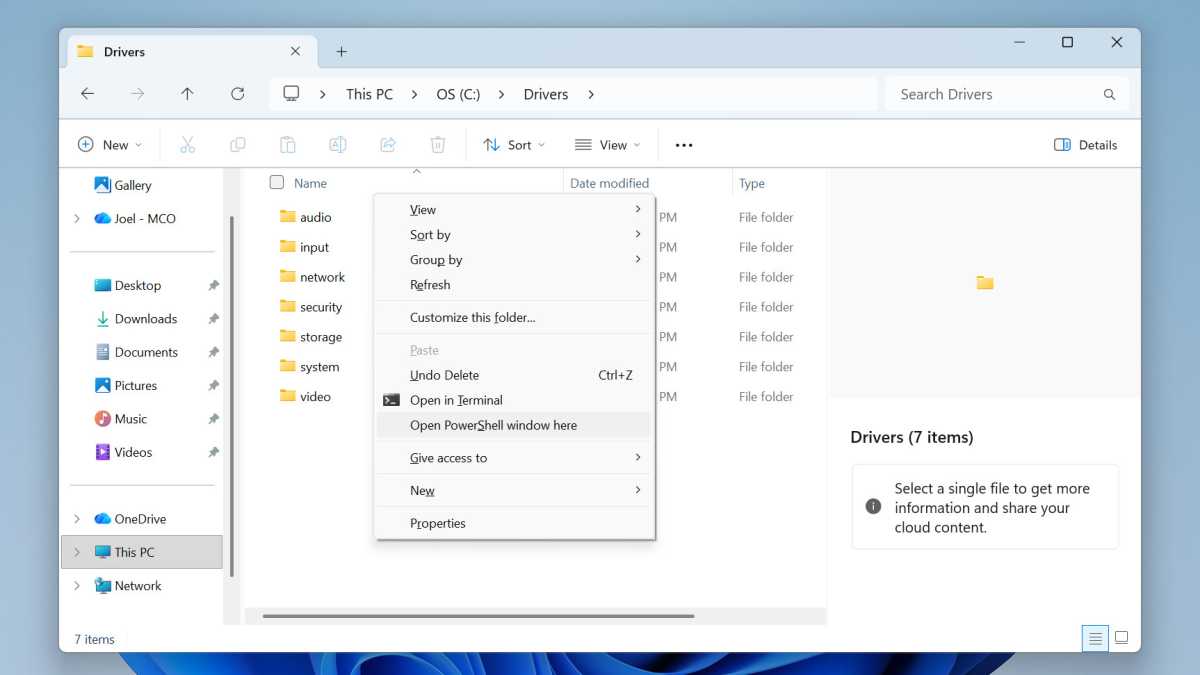
If you require the Command Prompt instead, the process is even simpler. Just right-click within the folder – no Shift key required – and select “Open in Terminal” from the context menu. This should directly open the Command Prompt in that location.
Occasionally, “Open in Terminal” might default to launching PowerShell. If you prefer the Command Prompt as the standard, a quick adjustment can resolve this. Launch PowerShell using the “Open in Terminal” option first.
Within the PowerShell window, press Ctrl + Comma to access the settings. Navigate to Startup, then locate the “Default profile” option. From the dropdown menu, select “Command Prompt.”
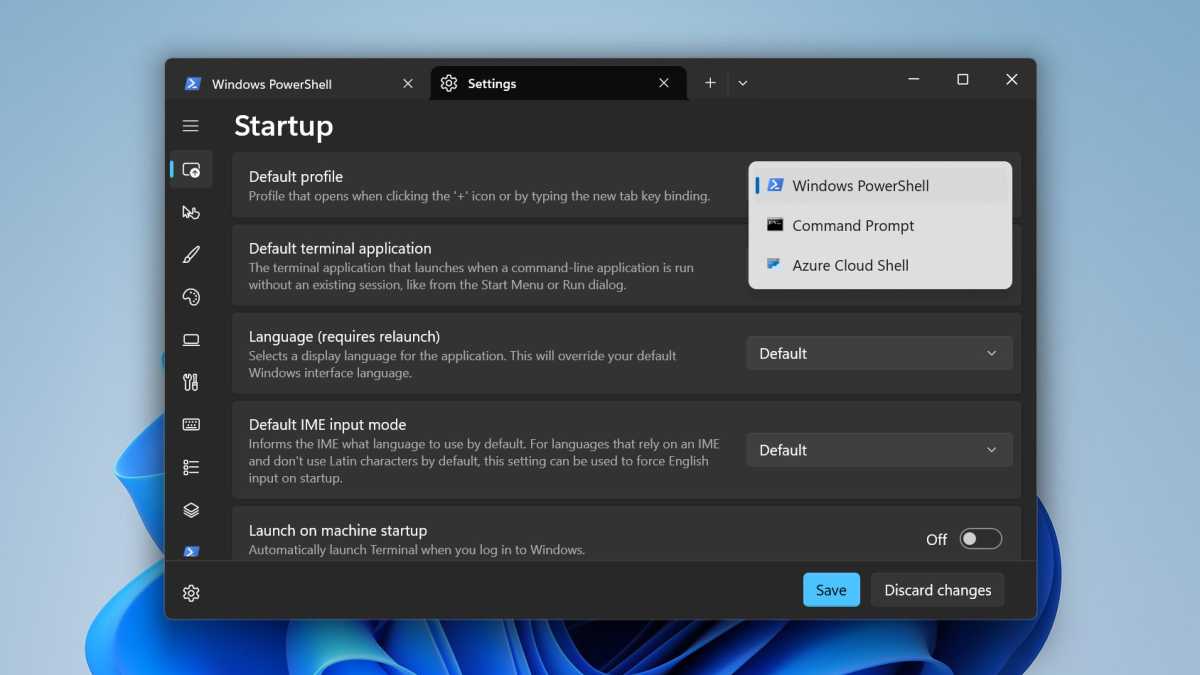
From that point forward, whenever you choose “Open in Terminal,” Windows 11 will reliably launch the Command Prompt, streamlining your workflow and putting powerful tools directly at your fingertips.