For years, Mac users have enjoyed a sense of security, believing their computers were largely immune to the viruses and malware that plague Windows PCs. While this perception holds some truth, it’s a dangerous overconfidence. Modern exploits exist that can bypass these defenses, leaving your Mac vulnerable to hackers who could steal your data – or worse.
The reality is, Macs *can* be hacked. Understanding the signs of a compromise and knowing how to respond is crucial. It’s important to remember that unusual behavior doesn’t automatically mean you’ve been targeted; macOS updates or app glitches can often cause temporary issues. However, certain symptoms should raise immediate concern.
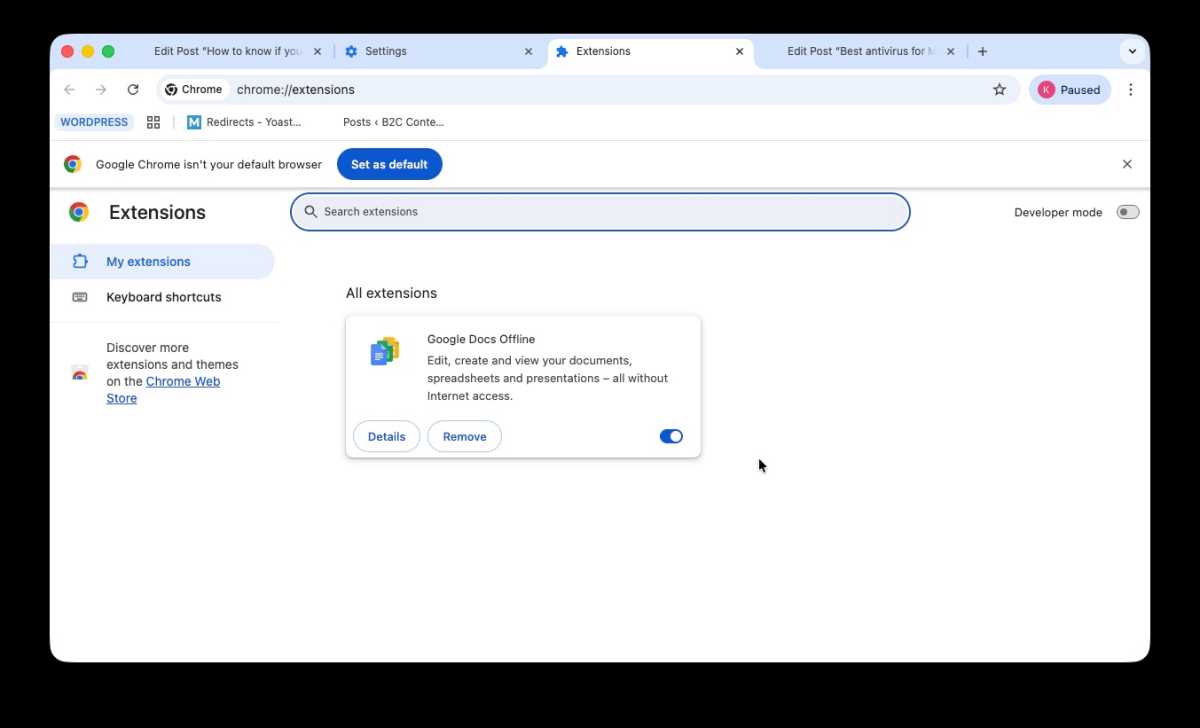
Pay attention to your Mac’s performance. Is it running unusually hot, even when idle? Are the fans constantly loud? A sudden and significant slowdown is a key indicator something is amiss. Also, be wary of browser-based anomalies: unexpected homepage changes, redirects to unfamiliar sites, unfamiliar extensions, and especially pop-up warnings claiming your Mac is infected.
Unexpected software is another red flag. If you discover applications you didn’t install, or have no recollection of installing, investigate immediately. Keep a close eye on Activity Monitor, too. Excessive CPU usage by unknown processes, especially when your Mac should be at rest, is a strong sign of malicious activity.
If you suspect a hack, immediate action is vital. First, disconnect from Wi-Fi to prevent further communication with the attacker. Then, using a different, trusted device, change all your important passwords – including your Apple ID. Review your Apple ID settings for any unfamiliar devices and remove them.
Delve into your System Settings. Look for unauthorized admin accounts, unfamiliar login items, and any enabled remote access features. Carefully check for suspicious configuration profiles. Back up your files, but be cautious – ensure your backup isn’t already infected. Run a reputable Mac antivirus scan, and apply any pending macOS updates.

For severe cases, a clean install of macOS is the most effective solution, though drastic. After reinstalling, enable FileVault for full disk encryption and activate the built-in Firewall for an added layer of protection.
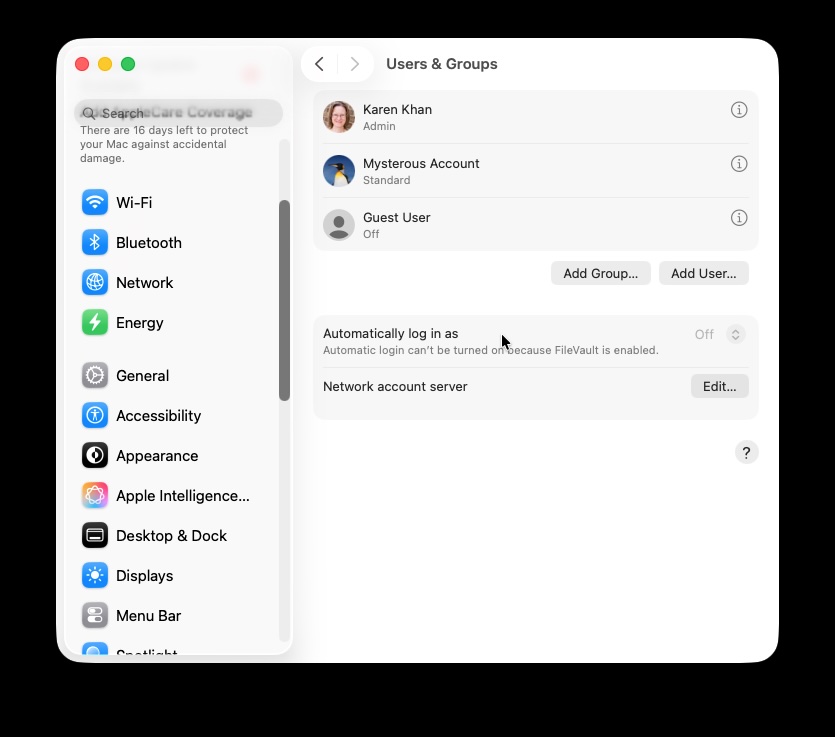
To investigate further, start with System Settings. Check for new admin accounts under Users & Groups, and verify your own account type hasn’t been altered. Examine Login Items & Extensions for any unfamiliar apps launching at startup. Scrutinize apps with App Background Activity permissions and any newly installed extensions.
Within Privacy & Security, review Remote Desktop access and Full Disk Access permissions. Look for any Profiles you didn’t intentionally install. Finally, check Sharing settings to ensure Screen Sharing, Remote Login, Remote Management, and File Sharing haven’t been enabled without your knowledge.
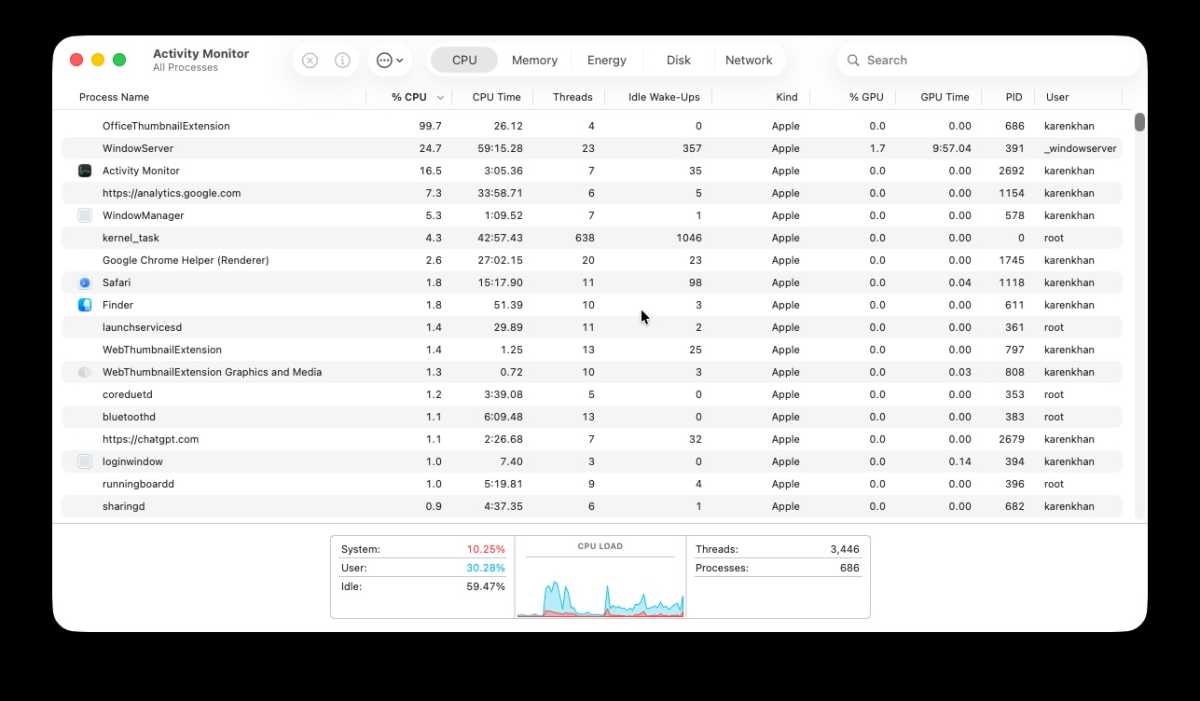
Activity Monitor is your next tool. View all processes, sort by CPU usage, and identify any apps or processes consuming excessive resources while your Mac is idle. Google any unfamiliar processes to determine their legitimacy. Also, monitor network activity, looking for large data transfers when you aren’t actively uploading.
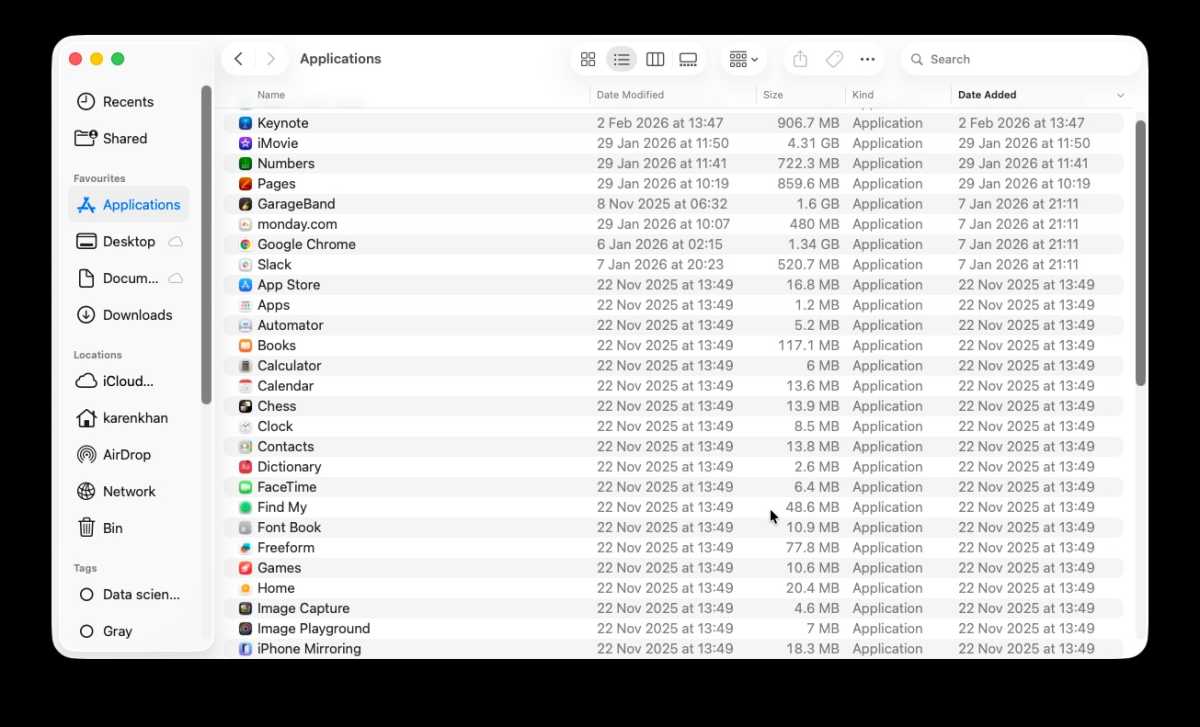
A thorough check of your Applications folder is essential. Sort by Date Added to quickly identify recently installed software you don’t recognize. Don’t overlook your web browsers. Check Safari, Chrome, Firefox, and any others for extensions you didn’t install and remove them immediately.
While macOS has built-in security features like XProtect, a dedicated antivirus scan is highly recommended. Several excellent Mac antivirus solutions are available, offering comprehensive protection. Initiating a scan is simple, usually requiring just a click of a “Scan” or “Smart Scan” button.
Finally, check if your email address has been involved in a data breach by visiting haveibeenpwned.com. If it has, change your password immediately. This doesn’t guarantee a hack, but it increases your risk and warrants immediate action.
Protecting your Mac requires vigilance. Only download software from the Mac App Store or official manufacturer websites. Avoid clicking suspicious links in emails. Be cautious with USB drives and cables. Consider using private browsing mode. And, most importantly, install macOS updates promptly – they often contain critical security patches.
macOS is a secure operating system, but it’s not impenetrable. By understanding the risks, recognizing the signs of a compromise, and taking proactive steps to protect your system, you can significantly reduce your vulnerability to hackers and safeguard your valuable data.
Various types of Mac malware exist. Cryptojacking uses your Mac’s resources to mine cryptocurrency, slowing performance. Spyware attempts to steal sensitive data, potentially using keyloggers. Ransomware encrypts your files and demands payment for their release. Botnets turn your computer into a spam-sending machine. Even “proof-of-concept” vulnerabilities, while not actively exploited, can pose a future risk.
Apple continuously works to address these threats, patching vulnerabilities and enhancing security features. They even offer rewards to researchers who discover and report security flaws. Automatic security updates, introduced in recent macOS versions, ensure your system receives critical protection without requiring manual intervention. Ensure this feature is enabled in System Settings > General > Software Update.
While Apple’s security measures are robust, they aren’t foolproof. Hackers may attempt to exploit vulnerabilities in your camera or microphone. While macOS Catalina introduced permission prompts for these features, vulnerabilities can still exist. Using a password manager is also a smart move, allowing you to create and store complex, unique passwords for all your accounts.